Tag School as Duplicate
· One min read

Technical Associate
Follow the steps below on how to tag a school record as duplicate.
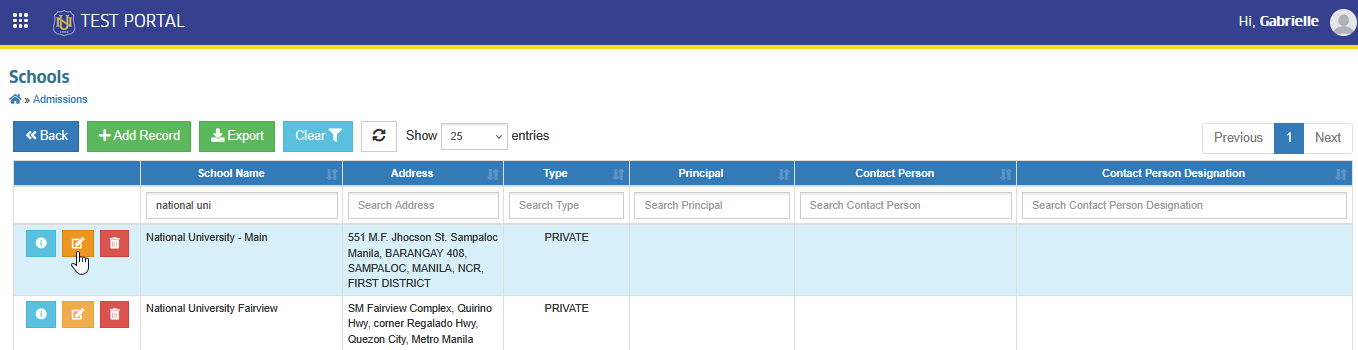
STEP 1. On the Schools list view page, click the corresponding button of the school record you want to update. This will redirect you to the Edit School page.
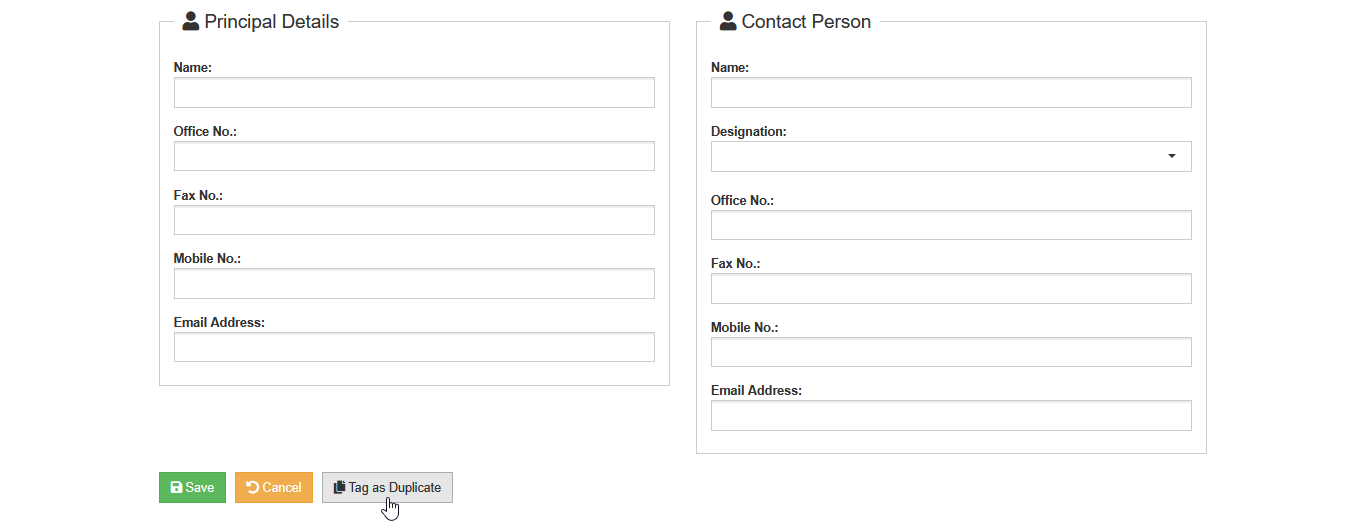
STEP 2. On the Edit School page, click the button located at the bottom of the page. Once clicked, the Mark as Duplicate prompt will appear for confirmation.
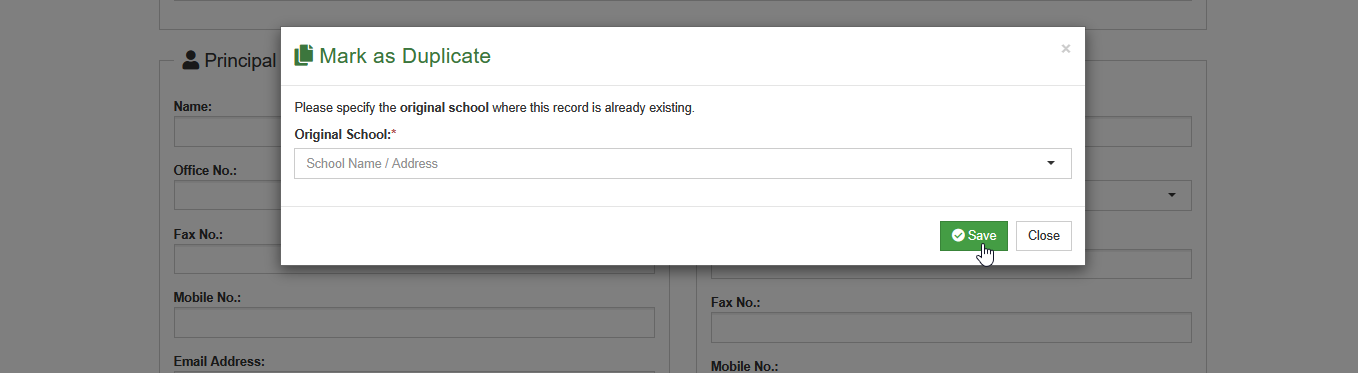
STEP 3. On the prompt, select the Original School in the dropdown and click the button.
NOTE
The options that will appear in the Original School selection are records with identical or nearly identical names to the current record being tagged.